
About six weeks ago I started building a local web app to help me triage my photo archive — something like 10,000+ shots accumulated across a Leica Q3, Q2 Monochrom, and Hasselblad X2D. The idea was simple: scan a directory, run some technical analysis (blur, exposure, sharpness), hit the Anthropic API for AI critique, and give me a fast triage interface to work through the backlog. What followed was 29 sessions of building, breaking, debugging, and occasionally staring at a crash screen wondering what I’d done.
This post documents the development arc through screenshots — matched to actual dev log entries. No stock imagery, no mockups. Everything here is from real sessions, real bugs, and real code.
Session 2–3 · March 22 · The First Scan
The first real test: point the app at an actual photo directory and let it run. It found 8,169 files across three camera types, extracted EXIF data on every one, and started the technical quality check — sharpness, exposure, blur detection — in the background. The scan progress bar across the top was new that session. So was the category sidebar (EXCEPTIONAL / STRONG / AVERAGE / WEAK / TRASH), which populated as the analyzer worked through the queue.

Session 7 · March 22 · Triage Workflow: Move to Trash
One of the earliest triage features was the ability to trash a photo from within the app — not just mark it, but actually move it to .Trashes on whatever volume it lives on. This required volume-aware routing: files on an external USB drive should go to /Volumes/PRO-G40/.Trashes/[uid]/, not to ~/.Trash. The confirmation modal below asks before committing the move and shows the full destination path so there’s no ambiguity about where the file is going.

Sessions 15–17 · March 26 · AI Scoring + Content Tags
The critique pipeline was working. Each photo was getting an AI score (0–100), a category (EXCEPTIONAL down to TRASH), a written critique, and a set of content tags extracted from what the model could see in the image. The detail view here shows a score of 88 and an EXCEPTIONAL rating, with tags like urban, street, reflection alongside EXIF data and a button to open directly in Lightroom. This was the first time the full data pipeline — scan → technical analysis → AI critique → tag extraction — was running end to end on real photos.

Session 10 (renumbered) · March 29 · The Pending Analysis View
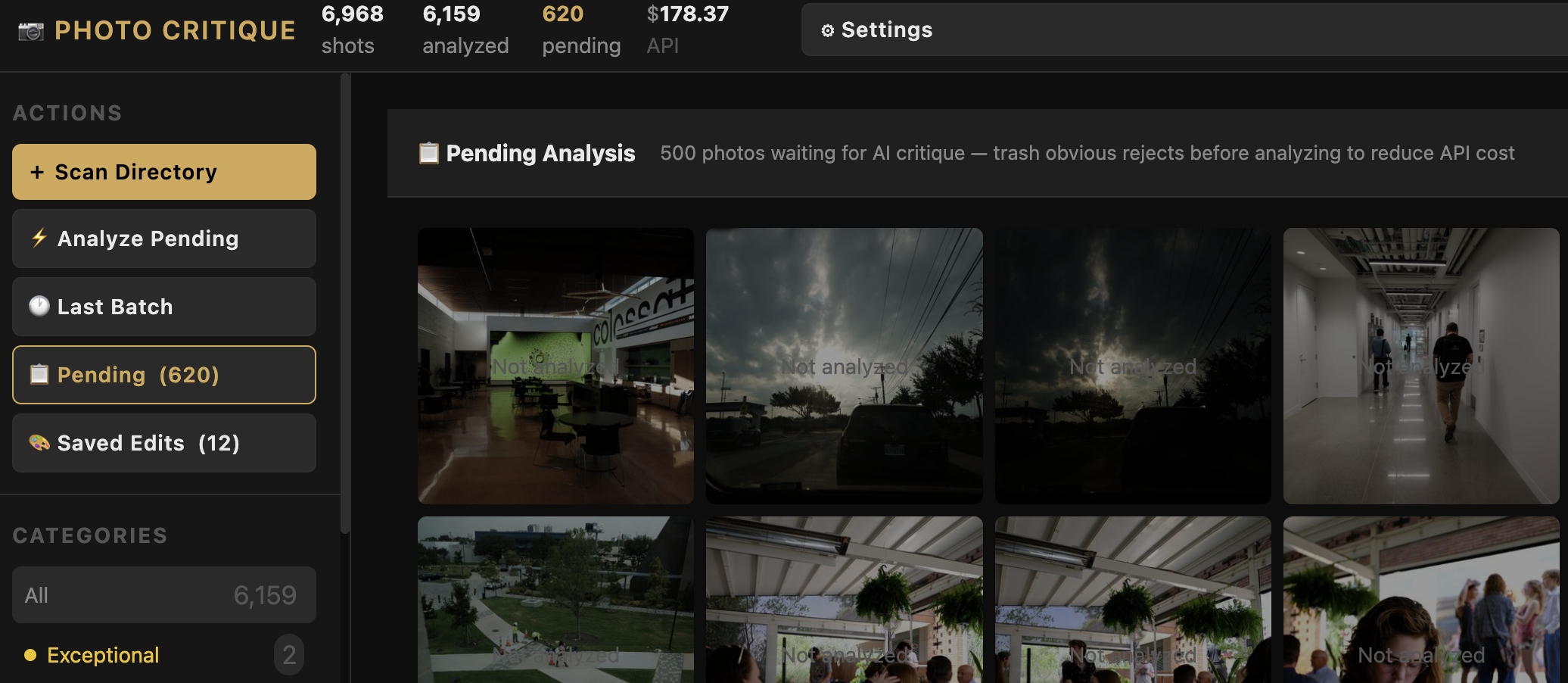
The main gallery only showed photos that had already been analyzed. But what about the ones still waiting? A new Pending view made the analysis queue visible — photos that had been scanned but hadn’t yet been sent through the AI. Initially it loaded without the sidebar; a second fix in the same session added it back. Both screenshots are from the same 6:09 PM timestamp — about nine minutes apart — showing the before and after of that sidebar fix.


March 29 · Bug: Stale Records + Native Browser Dialogs
Two bugs showed up back-to-back in the same session. First: the gallery was showing broken thumbnails for files that had been deleted from disk — “File not found” entries that cluttered the view and couldn’t be dismissed without triggering a purge. Second (and more annoying): clicking “Purge” triggered a native browser confirm() dialog — a JavaScript popup that blocked the entire UI until the user clicked OK. Both bugs are visible in the screenshots: the broken grid on the left, and the blunt browser confirm dialog that needed to be dismissed before anything else could happen.
The fix replaced native confirm() / alert() dialogs throughout the app with a proper in-app toast and modal system. The grid cleanup required a dedicated purge-stale-records endpoint that matched database entries against actual files on disk.


Sessions 11–12 · March 29 / March 31 · The Scan Modal Gets a Browse Button
The Scan Directory modal originally had just a text field — you typed in a path manually. That’s fine if you know your exact mount path, but for navigating to a deeply nested archive folder it’s impractical. Sessions 11 and 12 added a Browse button that opens a native macOS file picker dialog. The before-and-after shows the old text-only UI (late March 29) and the new modal with Browse and a real-time progress bar (March 31).


Sessions 11–12 · March 31 · Pending View Gets Real Thumbnails
Early versions of the Pending view listed photos as text rows — just filenames. The March 31 session added actual photo thumbnails to the queue, making it possible to make gut-level triage decisions before committing to a full AI analysis. The sidebar also gained a new Saved Edits (12) button tracking photos with user feedback on record.

Session 19 · April 5 · The Drive Migration Wizard
Moving a photo archive to a new drive is an operation that can silently break everything in a catalog-based app — every stored file path becomes wrong the moment the drive mounts at a different path. Session 19 built a 4-step Migration Wizard: Select source and destination, Copy files, Verify a sample of copied files against their originals with image comparison, and finally Update catalog to remap all stored paths.
Step 3 sampled 15 Hasselblad JPEGs and compared them pixel-level to their source counterparts. Step 4 did a find-and-replace on the path prefix across the entire database — PRO-G40 out, Crucial X10 in.


Session 19 · April 5 · The Migration Crash
Not everything in Session 19 went cleanly. The migration wizard hit a 500 Internal Server Error mid-run — caught by the red banner in the screenshot below. Root cause: the UPDATE SQL referenced two columns, thumbnail_path and raw_pair_path, that don’t exist in the database schema. They never did. They were written from memory rather than from reading the actual schema, and SQLite doesn’t catch this kind of error gracefully during a batch UPDATE — it just crashes.
The fix was a 30-second schema read before writing any SQL. This session also surfaced a second silent bug: saved_copies.path was being skipped during the path update, which would have made all edited copies permanently unreachable post-migration with no error shown. Both bugs came from writing against assumptions instead of against observed code.

Session 19 · April 5 · Post-Migration: 10,000+ Photos on a New Drive
Once the migration bugs were fixed, the full catalog loaded correctly on the new Crucial X10 drive — 10,027 shots, genre filter sidebar intact, all categories preserved. The detail view and feedback panel also survived the path remap cleanly.


Session 20 · April 6 · Flickr Import: 16,000 Photos Break the Filters
The app had been tested on a few thousand photos. Session 20 scanned an entire Flickr backup: 16,319 files from /flickrbackup. Total catalog size jumped to 20,000+. The scan itself completed fine — 16,318/16,319 detected. What broke was the sidebar filter counts. With that many records, the NOT TRIAGED count read as 29 when the actual number was 11,319. The bug was a pagination math error that only surfaced at this scale.


Sessions 21–22 · April 6 · Camera Filter Pills + Bulk Assign
With 20,000+ photos from 30+ different cameras, browsing by category alone wasn’t enough. Session 21 added camera filter pills to the sidebar — one pill per detected camera model — and fixed the filter count pagination. Session 22 added a bulk assign bar: select a camera from the filter pills, then assign a category to every unanalyzed photo from that device at once. The screenshot shows the full 20,915-shot catalog with both features working, the camera pills expanded in the sidebar and the bulk assign bar active at the bottom.

Sessions 22–23 · April 6 · Duplicate Detection
Cross-directory duplicate detection landed in Session 22 — using EXIF timestamp + camera model as the primary signal, plus perceptual hashing (pHash) for cross-directory variant matching. When a duplicate pair is found, a modal shows both files side by side: this photo and its sibling, with file type, directory path, category, and score for each. The decision buttons let you trash one, trash the other, or keep both. The example below is L1000612 — the same shot from a Leica, one JPEG and one DNG, same timestamp, both scored as STRONG.

Sessions 23–28 · April 7 · Scanning a New Drive with RAW+JPEG Pair Detection
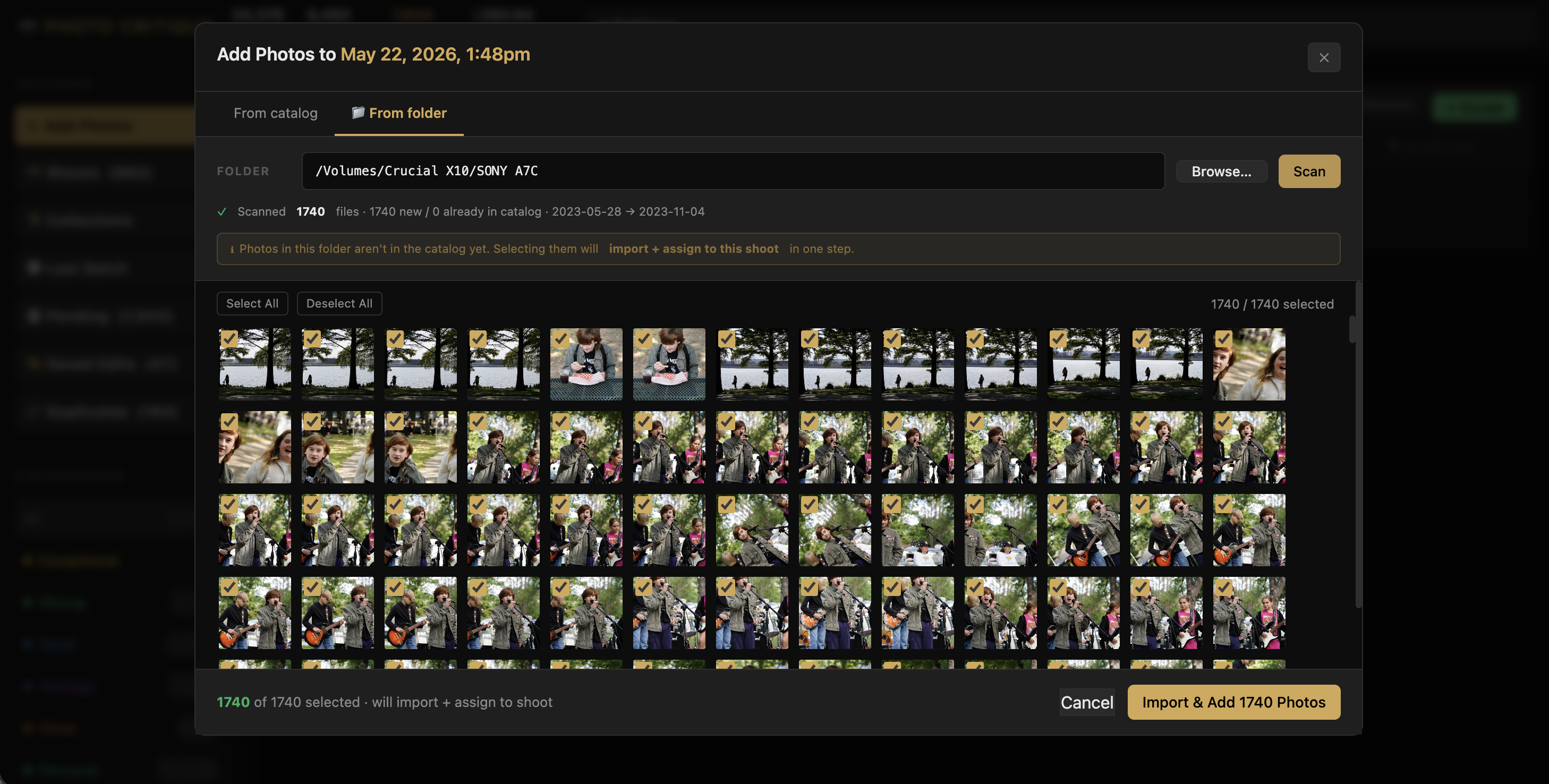
Sessions 23–28 covered Hasselblad multi-RAW pairing (.fff + .3fr triplets), perceptual hash cross-directory variant detection, and the DUP view for persistent duplicate dismissal. The April 7 screenshot shows the scan modal mid-run on /Volumes/PRO-G40/Autre shoot — 5,472 of 5,473 files found, with “Detecting RAW+JPEG pairs…” in the progress bar. That pairing step had been one of the harder problems: Hasselblad produces three files per shot, and the app needed to group them correctly before cataloging any of them.

Where It Stands
Twenty-nine sessions in, the app does a lot: scan directories across multiple drives, run technical quality analysis, send photos through the Anthropic API for scored critique and content tagging, triage via a keyboard-driven gallery, move files to trash with volume-aware routing, detect and resolve duplicates, migrate an archive to a new drive without losing catalog data, and handle a 20,000-photo library without falling over. The proof-of-concept is working. The next question is whether it turns into something public.


Leave a Reply