

By C.K. Sample III — April 2026
I have a problem that I suspect a lot of serious photographers share: the backlog.
Not the kind of backlog where you’re a few weeks behind. I mean a genuine, multi-year archive with over 10,000 shots sitting unreviewed — pulled from three different camera systems, sorted by drive, mostly untouched because opening Lightroom and starting from scratch feels like deciding to eat an elephant. Also, the scale I am describing here is just the first 3 folders that my AI has visibility to as I build this application with it. There are many more images uncatalogued as of yet.
The standard advice is to just start. Pick a folder. Cull. Work your way through.
I tried that. It doesn’t work at the scale I’m describing.
The Problem with Triage at Scale
The bottleneck isn’t discipline. It’s that photo editing software isn’t designed for triage — it’s designed for editing. Lightroom assumes you’ve already decided which photos matter. It’s a finishing tool. What I needed was something upstream of that: a way to get fast, honest signal about which photos deserved my time before I started touching them. And Bridge and other tools that are supposed to do this are total trash, imo.
I needed a triage layer.
So I built one. Not by myself — I built it with Claude.
What “Building with an AI Developer” Actually Means
Before I go further, I want to be clear about what that means in practice, because “I used AI” has become so generic it’s almost meaningless.
I’m not talking about generating a script or getting some code suggestions. I’m talking about a sustained collaboration over weeks of development sessions, working in Claude’s Cowork mode, where Claude operates as a senior developer — making real architectural decisions, catching bugs, writing production code, and pushing back when my product instincts don’t match technical reality.
The dynamic works like this: I show up as the CPO and photographer. I know the problem deeply. I know what workflow friction feels like, what makes a culling session exhausting, what signals matter to a working photographer. Claude shows up as the developer. Senior-level Python, FastAPI, database design, API integration. The app we’ve built together is not a demo or a toy. It’s a working prototype running on my machine right now, against my actual archive.
What We’ve Built
Here’s where things stand as of today.

The app scans photo directories on my drives, extracts EXIF data, and runs local technical analysis — blur detection, exposure scoring, EXIF orientation correction — before anything touches the AI. Then it sends each photo to Claude’s vision API for a full critique: a score from 0–100, a category assignment, a compositional read, technical assessment, and a full set of Lightroom-style edit suggestions (Exposure, Contrast, Highlights, Shadows, Whites, Blacks, Saturation, Vibrance, Clarity, Sharpness) with numeric values I can apply directly.
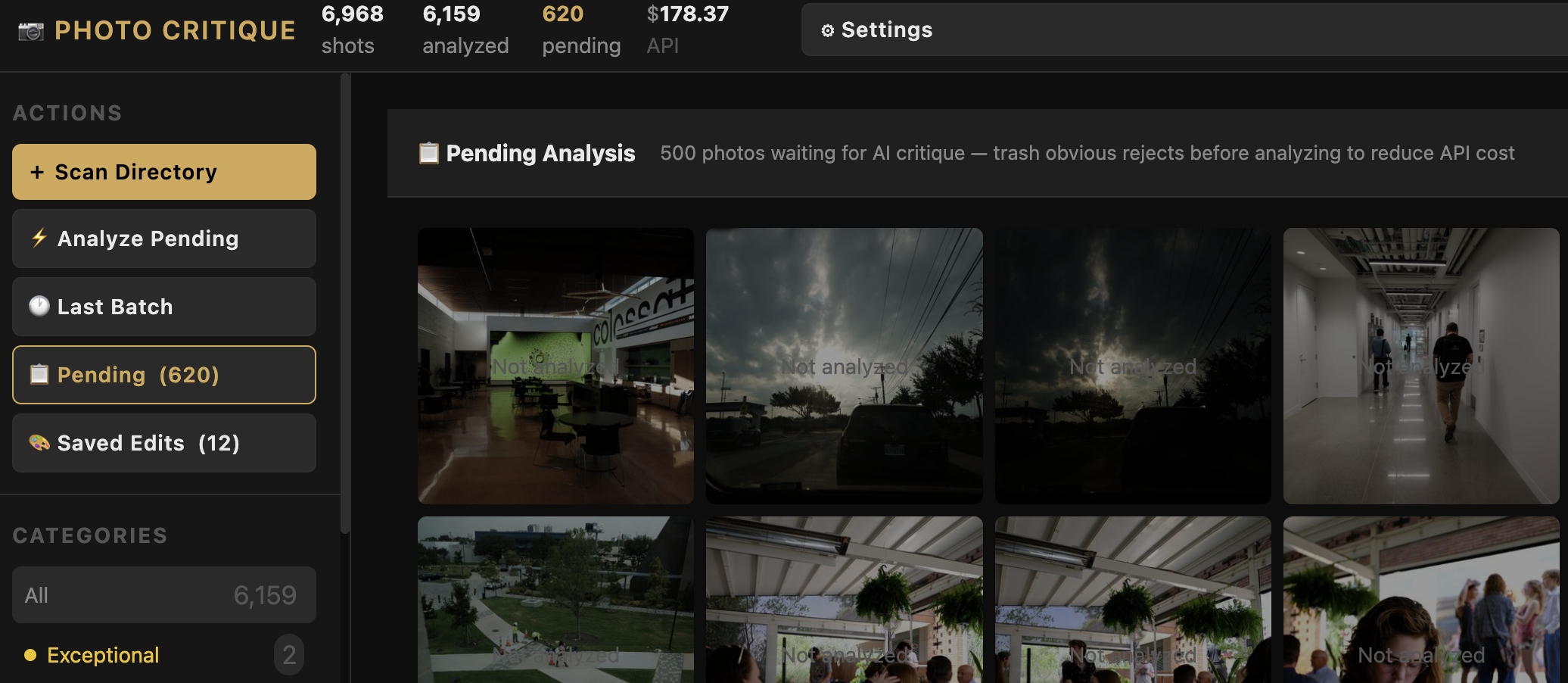
But I don’t have to send everything to the full AI critique. Before running it, I can browse the unanalyzed queue and pre-triage manually — trash obvious duds before spending a cent on AI. Or I can run a Quick Triage pass using Claude’s Haiku model, which screens every photo for obvious garbage (blurry throughout, accidental trigger, lens cap, test shot) at roughly $0.002 per photo — about 1/15th the cost of the full critique. Only the survivors go to the full Sonnet analysis. On a shoot with 30% garbage, that’s a real cost reduction.
The numbers from my current session:
- 10,027 total shots loaded from three drive directories
- 6,358 analyzed by the AI pipeline
- 3,474 still pending in the queue
- $184.57 spent on the Anthropic API to date — across thousands of per-image critiques (and this number has some notable development bloat, largely from an initial scan before we fine-tuned the app to have pre-scan triage, and a two-prong scan)
That last number surprises people. The cost per image works out to roughly three cents. For a substantive AI critique of each photo — not a generic “this is blurry” flag, but an analysis that considers composition, subject, technical quality, and category — three cents per image is almost nothing. And with pre-triage and Haiku filtering now in place, ongoing costs are materially lower per photo. I have a live running breakdown of spending by day and month in the app’s Settings panel.

The Gallery That Changed How I See My Archive
The category view was the first moment I felt the tool working.
On the left, I can filter by photo type — the AI categorizes each shot as Street, Portrait, Architecture, Landscape, Documentary, Abstract, Still life, Fine art, or Travel. My current breakdown: 2,489 Documentary, 529 Street, 421 Portrait, 356 Architecture. I’ve been shooting for years and never had this kind of structural view of what I actually make.
The Exceptional bucket — the photos that scored 88 or above — has exactly two images in it right now from the portion of the archive that’s been analyzed. Both are B&W photographs, both scored 88.
I knew those photos were good. I didn’t know they were that good — at least not in the sense of having a system confirm it alongside 6,000 other shots.

Meanwhile, the Strong category has 1,675 photos. That’s the real working corpus. Not the diamonds, but the solid, publishable, portfolio-worthy work that’s been waiting for me to find it.
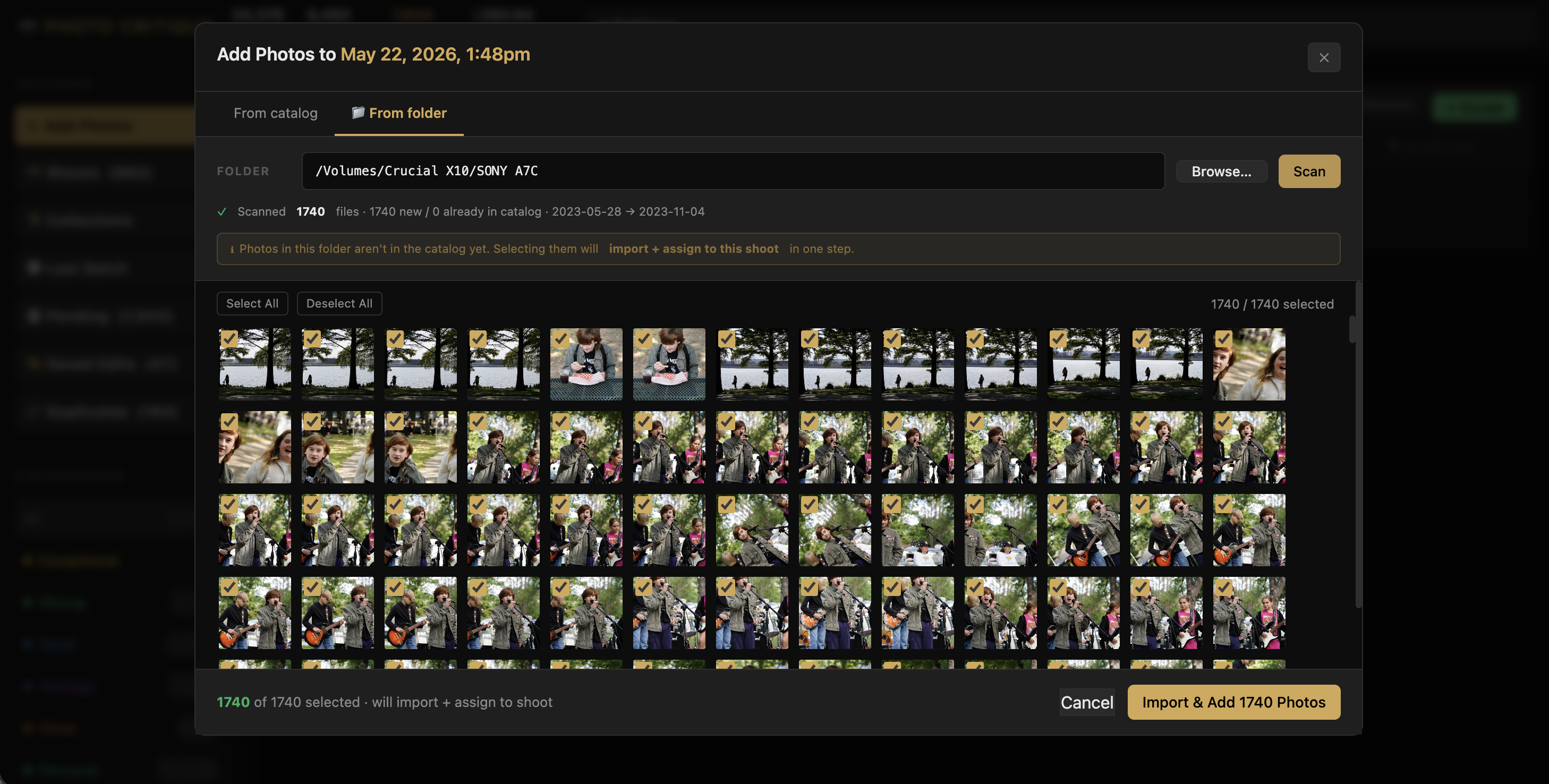
The app also understands my gear. Cameras that shoot RAW+JPEG simultaneously produce duplicate file pairs. Rather than showing them as separate catalog entries, the app groups them as a single shot — using the JPEG as the AI analysis source (for color accuracy) while keeping the RAW as the primary catalog entry. My 10,027 shot count reflects actual captures, not raw file count.
The Detail That Makes It Actually Useful
Score and category alone would make a decent triage tool. What makes this one interesting is the feedback loop.
When I click any photo, the AI critique opens alongside it — not a generic quality assessment, but a specific read of that image. Why it scored what it scored. What’s working. What isn’t. I can agree, disagree, override the category, add notes, or trigger a re-analysis with my own context injected into the prompt. The system learns my preferences over time through that feedback.

That override mechanism matters. The AI doesn’t know I shoot with a Leica. It doesn’t know I tend to favor high-contrast monochrome and consider slight motion blur in street work intentional rather than a flaw. Those preferences are mine to encode. The tool gives me the leverage; I supply the taste.
It also gives compositional feedback on my images. As well as edit suggestions for when I jump into Lightroom. It can even prepare a suggested edits sidecar for Lightroom, and we built some light in-app photo editing tools as well in case I don’t want to bother with launching Lightroom.
The Edit Suite That Shouldn’t Exist (But Does)
Here’s something I didn’t expect to build: a full image editing environment inside the triage tool.
Every analyzed photo has a panel with 10 adjustable sliders — Exposure, Contrast, Highlights, Shadows, Whites, Blacks, Saturation, Vibrance, Clarity, Sharpness. The AI pre-populates them with its suggested values based on what it read in the image. I can adjust them, see an instant preview of the effect, or trigger a full server-rendered before/after at full resolution. There’s also a canvas-based tone curve editor with live preview that composites on top of the slider adjustments.
If I want to crop the photo, I drag corner handles directly over the image to define the region. The crop is stored separately from the sliders, so I can preview, tweak, and save a cropped copy independently of the adjustments. Manual rotation is also there for shots the camera got sideways.
Two export paths from any photo:
- Save Full Copy — applies all current adjustments and saves a full-resolution JPEG to disk
- Save XMP — exports the AI’s adjustment values as a Lightroom XMP sidecar file, which Lightroom picks up automatically when you open the RAW. The AI’s suggested edit is already dialed in as your starting point.
The XMP path is the one I use most. The workflow: the app scores and categorizes everything, I triage in the app, then for photos I want to edit properly I open them in Lightroom with the AI’s suggested settings already applied as a starting point. It’s not a Lightroom replacement — it’s a first-pass prep layer that makes Lightroom sessions faster.
There’s also Instagram prep built in: any saved copy can be formatted as a bordered JPEG in four aspect ratios (1:1, 4:5, 5:4, 9:16) with a choice of border colors, previewed in-browser before committing. It wasn’t in the original product plan. It emerged from actually using the tool.
What the Collaboration Actually Looks Like
Here’s something I find genuinely worth sharing, because I don’t see many honest accounts of this:
Building with an AI developer is iterative and specific in a way that’s different from just using a tool. Claude will say things like: “Before I write this SQL, I’m reading the schema to verify the column names actually exist — the last migration had a silent mismatch that would have caused a mid-operation crash on your data.” That’s not just code generation. That’s a collaborator with judgment about what’s risky.
I’ve also had moments where Claude pushed back on my product direction. I wanted to implement a feature quickly; Claude outlined why the approach would create a technical debt problem three features from now. We debated it. Changed course. The final architecture is better for it.
The CLAUDE.md files that govern each working folder in our project are essentially the shared memory and working agreement between us — the standing instructions, the architectural decisions, the rules we’ve established through experience. That layer of persistent context is what makes the collaboration feel continuous rather than starting from scratch each session.
Where This Is Going
The prototype proves the pipeline. The next phase is the feature I’m most excited about: corpus intelligence.
Right now, the app triages individual photos. What I want is something that works asynchronously across the full catalog — surfacing thematic clusters, identifying bodies of work with publication potential, flagging sequences that could become a zine or a gallery show. The pipeline feeds the corpus. The corpus informs the work.
The edit suite — sliders, tone curve, XMP export, Instagram prep — didn’t make it into the original product plan at all. It emerged from actually using the tool. That’s the nature of building against your own workflow: you find what you actually need, not what you thought you’d need.
Beyond that, this is heading toward a public product. I’m building it for myself first because that’s how you know if something actually solves a problem. But the archive problem isn’t mine alone — it belongs to anyone who shoots seriously, owns multiple cameras, and has years of work sitting in folders they can’t get to.
If that describes you, stay tuned. We’re just getting started.
The Photo Critique App is currently a working prototype. Follow along as we build — subscribe below or follow me on Instagram @cksamplephotos for updates.
Leave a Reply